Answers from your own notes, while the call is still going.

Meeting Ears is a Windows app for interviews and work calls. It listens to your microphone and to the call, writes a live transcript, notices when someone asks you a question and drafts a short answer from the notes you gave it. It works with Zoom, Google Meet, Teams, Slack, a call in the browser, or anything else that plays sound on your PC.

Windows 10 and 11 only for now. It’s early access, so expect rough edges and frequent updates.

The video didn’t load. There’s an animated example of how it works further down.

Recorded in the app with made-up questions, one of them in Bulgarian. The speech is sped up; from the end of each question to the finished answer it plays in real time.

A few numbers from our tests

≈2 s
from the end of a question to the answer card appearing with the question on it.
6–8 s
until the whole answer has been written.
1.3%
of words wrong on Bulgarian test recordings (Google’s FLEURS set) with the Bulgarian + English setting. Auto-detect got 6.6%, which is why Bulgarian + English is the default.
83
languages in the transcript. Google lists 24 of them as supported; the other 59 are beta.

Timings depend on your connection. The transcription and the answers run on the Meeting Ears service, so your PC needs no graphics card. The app uses about 380 MB of memory while idle (measured on 10 October 2026).

What it does during a call

Questions get an answer card

When someone finishes asking you something, a card appears with their question at the top. A few seconds later the answer fills in: a handful of short points you can glance at and say in your own words, in the language the question was asked in.

In Auto mode it answers the questions from the others on the call. In Manual mode it only marks them, and you press Answer when you want one. You can copy an answer, ask for a shorter one, or pin it so it stays on top.

The transcript

Runs next to the answers. Your microphone is labelled You and the call is labelled Others, so you can tell who said what. Search it, or click any line to answer it or translate it into another language. The microphone and the call audio switch on and off separately.

The notes behind the answers

Before a call you fill in a context preset: what the meeting is about, your CV, the agenda, the figures people tend to ask about. Text files work today (txt, md, csv, json). PDF and Word don’t yet; they’re planned. After a few meetings, Regenerate context can write a summary of the project’s recent calls into the preset.

Out of sight when you share your screen

The window is left out of screenshots and screen shares on Windows 11 and on Windows 10 from version 2004. It isn’t in the taskbar, and Ctrl Shift H hides it.

Also in the app

  • Google Calendar (read-only) or any calendar address, with a reminder two minutes before a meeting and a short prep brief from the invitation.
  • History on your PC, grouped by project, kept for 30 days, 90 days or forever.
  • Export a meeting to Markdown, or start a follow-up email with the questions and answers.

One interview, minute by minute

  1. 09:52

    You open the project for the job and pick the preset for round two. It already holds the job ad, your CV and a few lines about the stories you want to tell.

  2. 10:00

    You press Start listening. Lines start appearing: yours as You, the interviewer’s as Others.

  3. 10:07

    Others Can you walk me through a migration you led?

    About two seconds after they stop talking, the question shows up on a card beside the transcript. The points fill in over the next few seconds, taken from the story in your notes.

  4. 10:46

    You press Stop. The meeting is saved on your PC under the project.

What it looks like

Screenshots from the current version. It changes often, so yours may look a little different.

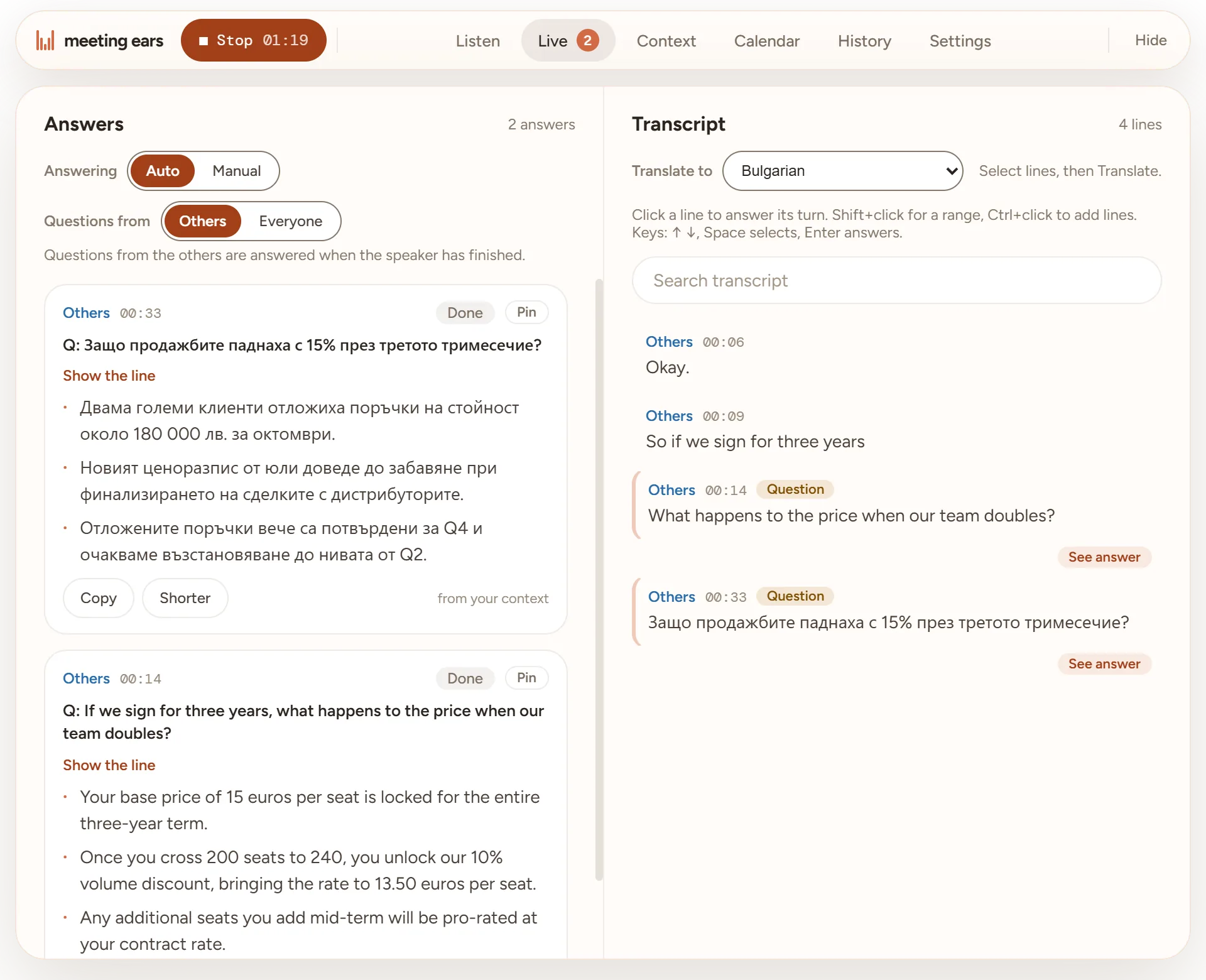
Screenshot of the Live tab during a call: two answer cards, one in Bulgarian about a sales drop and one about a three-year price, next to the transcript with both questions marked
Live: the transcript on the right with the questions marked, and their answer cards on the left, written from the preset’s notes.
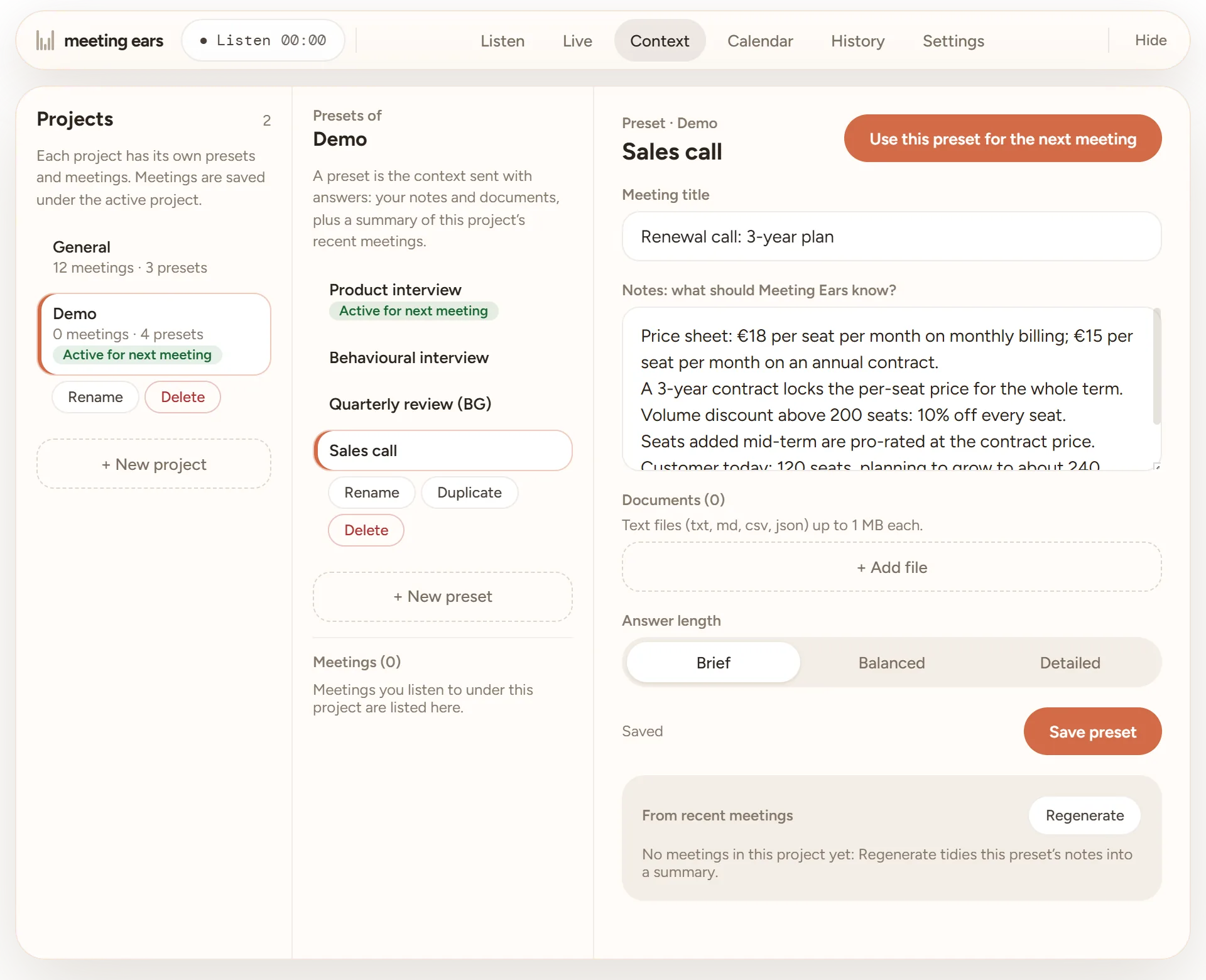
Screenshot of the Context tab: the Sales call preset of a Demo project, with its notes on prices and seats
Context: a project’s presets, and the notes and files the answers are written from.
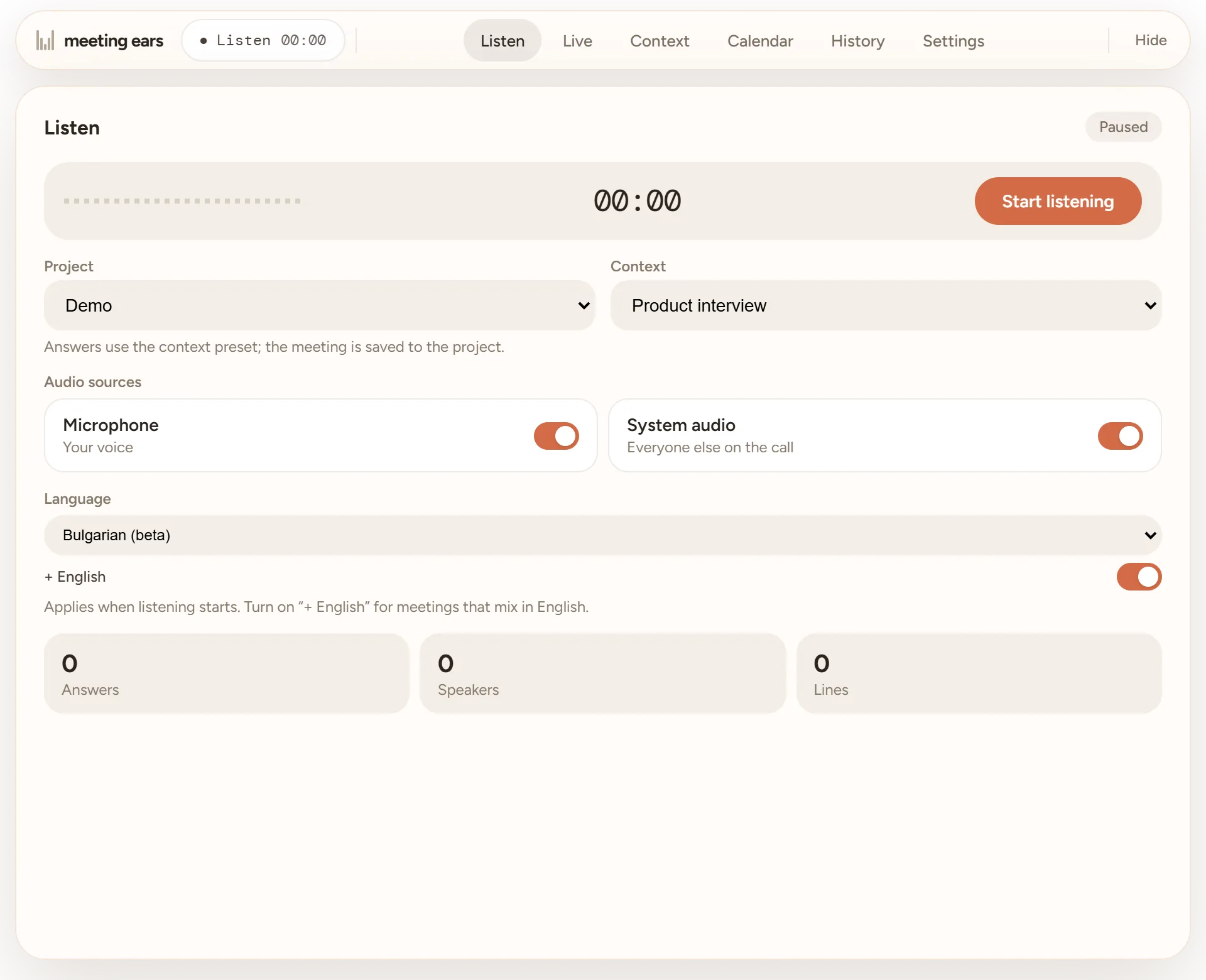
Screenshot of the Listen tab: Start listening, the project and preset, the microphone and call audio switches, and Bulgarian + English
Listen: pick the project and preset, switch the microphone and the call audio, set the language, and start.
Privacy

Your meeting history stays on your computer.

While you listen, the audio and your notes go to the Meeting Ears service to be transcribed and answered. Nothing from the call is kept there afterwards.

What is sent, what is kept, and where

On your PC
Transcripts, answers, projects, presets and calendar events. Delete them whenever you like.
On the service
Your account, your plan and how much time you used. Not your audio, transcripts or answers.
Not used for training
I don’t train AI models on your meetings. The AI runs on Google Cloud’s Vertex AI, under Google Cloud’s terms for business customers.

What it costs

During early access only the Founders licence is on sale, by bank transfer. The other prices are set and open when card payments do.

  • Founders licence$199 once5 hours every month for as long as the service runs. 50 seats, never sold again.
  • Free trial$015 minutes, once, after you verify your email.
  • Interview Pass$9 once2 hours within 14 days.
  • Job-Hunt Pass$19 once6 hours within 30 days.
  • Pro$24 a month12 hours a month, then your own Gemini key. Or $240 a year.
  • Max$49 a month30 hours a month, and your own key any time. Or $490 a year.

Prices in US dollars, without VAT. Full pricing, the AI allowance and fair use.

Questions people asked

I join Zoom from the browser, not the app. Will it still hear the call?

Yes. It listens to whatever your PC plays through the speakers or headphones, plus your microphone, so it doesn’t matter which app or browser the call is in. It never connects to the meeting itself.

My laptop is a few years old and has no graphics card. Is that enough?

It should be. The speech recognition and the answers run on the Meeting Ears service, not on your laptop, so there’s no model to download and nothing heavy running locally. You need Windows 10 or 11 and a working internet connection.

Our meetings jump between Bulgarian and English. Which language do I pick?

Bulgarian + English, which is the default. On Bulgarian test recordings it got 1.3% of words wrong, against 6.6% for auto-detect. Questions are found in both languages, and each answer comes in the language of its question. More about languages.

Is the app itself in Bulgarian?

Not yet. The buttons and menus are in English; the transcript and the answers follow the language of the meeting.

If I share my screen, will they see the panel?

No, the window is left out of screen shares and screenshots on Windows 11 and Windows 10 (version 2004 or later). Windows notifications can still show up in a share, so calendar reminders only say “Meeting starts in 2 min” unless you choose to show the title.

Does a recording of my call end up on your servers?

No. The audio, your notes and the recent transcript are sent while you listen, processed, and not stored. Your history is saved only on your PC. Privacy and data.

What if my hours run out in the middle of an interview?

The app warns you when about 10 minutes are left. At zero it stops listening and saves the meeting. On Pro, Max and the Founders licence you can add your own Gemini key and carry on. Plans and live time.

Should I tell the other people I’m using it?

Yes, when the rules or the situation call for it. Laws on transcribing calls differ by country, and many need everyone’s consent. Some interviews and tests don’t allow assistants at all; follow their rules. Acceptable use.

Is there a Mac or phone version?

No, Windows only for now.

Why I built Meeting Ears

I built Meeting Ears for interviews and work meetings in more than one language. It understands 83 languages: 24 fully supported, among them English, German, French, Spanish, Italian, Polish, Russian, Turkish and Japanese, and 59 more in beta, among them Bulgarian, Ukrainian, Romanian, Czech, Serbian, Swedish and Arabic. It also keeps up when a meeting switches between two of them in the middle of a sentence, like Bulgarian and English. Many tools that do this kind of thing need a powerful PC with a good graphics card. I wanted one that runs on an ordinary laptop, hears both sides of the call and puts a short, useful answer on the screen a few seconds after the question, not after the meeting.

That’s what it does today, but it is early. Some parts are rough, and some I haven’t built yet, like PDF files in the context or a Mac version. I answer every email myself.

The Founders seats pay for the next months of work. If you take one, you also get a say in what gets built next. What Founders ask for is what I work on first.

Stefan Shabanov

Questions before you decide? Write to shabanov.stefan@outlook.com, or read about the Founders licence.